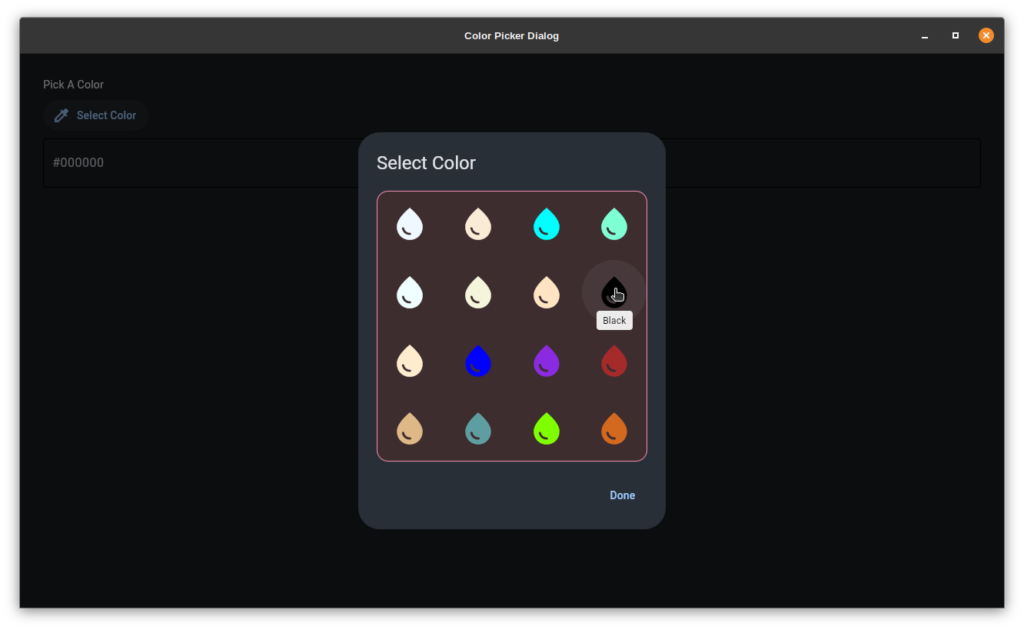
I am working on a project and decided on Flet for the interface. Flet does not include a color picker dialog. Here is what I came up with, a simple Python class. I hope it’s can be useful for others.
What the hell is Flet?
“Flet enables developers to easily build realtime web, mobile and desktop apps in Python. No frontend experience required.”
I disagree. I had to learn this and this is a front end… It’s a Python implementation of Google’s Flutter from what I can tell.
Only Three Steps
Create a Python Virtual Environment.
Install Flet and MatPlotLib.
Save this script as main.py and run it. From the virtual environment, of course. 🙂
#!/usr/bin/env python3
import flet as ft
import matplotlib

'''
Flet Color Picker Dialog in Python.

Flet does not have one so I needed to make my own
and I thought I would share.

Author: C. Nichols <mohawke@gmail.com>
License: WTFPL
    WTFPL — Do What the Fuck You Want to Public License

Requirements: You need to install the following.

pip install flet
pip install matplotlib

I suggest you use a Python virtual environment.
That will keep your system Python clean and make
it easier to manage you Flet project.

https://docs.python.org/3/library/venv.html
'''
# Grap the colors dictionary from Matplot
MPCOLORS = matplotlib.colors.cnames

class ColorPicker(ft.UserControl):

    def __init__(self, page, output_control):
        super().__init__()

        self.MPColors = MPCOLORS
        self.page = page
        self.output_control = output_control
        color_grid = self.build_color_grid()

        # Setup the Flet AlertDialog.
        self.dlg_modal = ft.AlertDialog(
            modal=True,
            title=ft.Text("Select Color"),
            content=ft.Container(color_grid,bgcolor="#3d2d2f", border=ft.border.all(1, ft.colors.BLUE_400), border_radius=15),
            actions=[
                ft.TextButton("Done", on_click=self.close_dlg),
            ],
            actions_alignment=ft.MainAxisAlignment.END,
            on_dismiss="",
        )

        self.page.update()

    def build_color_grid(self):
        '''
        Create a Flet GridView to house the colors
        and populate with a series of IconButtons
        that represent each color.
        '''

        color_grid = ft.GridView(
            expand=1,
            runs_count=5,
            max_extent=90,
            child_aspect_ratio=1,
            spacing=5,
            run_spacing=5,
            width=350,
            height=350,
        )

        for color_name,color_hex in sorted(self.MPColors.items()):
            color_grid.controls.append(
                ft.IconButton(
                    icon=ft.icons.WATER_DROP,
                    icon_color=color_hex,
                    icon_size=50,
                    tooltip=color_name.title(),
                    on_click=self.picked_color,
                    data=color_hex,
                )
            )

        return color_grid

    # COLOR PICKER
    def picked_color(self, e):
        '''
        Handle the IconButton click.
        We set the result to a Flet control
        added in main.
        '''
        hex_color = e.control.data
        self.output_control.bgcolor = hex_color
        self.page.update()

    def close_dlg(self, e):
        '''
        Opens the dialog.
        '''
        self.dlg_modal.open = False
        self.page.update()

    def open_dlg_modal(self, e):
        '''
        Closes the dialog.
        '''
        self.page.dialog = self.dlg_modal
        self.dlg_modal.open = True
        self.page.update()

def main(page: ft.Page):

    # Create a simple flet page.
    page.title = "Color Picker Dialog"
    page.theme_mode = "dark"

    # Instantiate the color picker.
    swatch = ft.Container(bgcolor=ft.colors.BLACK, width=100, height=23, border = ft.border.all(1, ft.colors.BLACK), border_radius=ft.border_radius.all(15))
    my_color_picker = ColorPicker(page, swatch)

    # POPULATE THE PAGE CONTROLS
    #  We will use an ElevatedButton to open the picker.
    main_controls = [
        ft.Container(ft.Text("Pick A Color")),
        ft.ElevatedButton("Select Color", icon=ft.icons.COLORIZE, on_click=my_color_picker.open_dlg_modal),
        my_color_picker.output_control
    ]

    # POPULATE THE PAGE : Helping function to easily add aligned columns.
    def form_column_with_alignment(align: ft.MainAxisAlignment):
        return ft.Column(
            [
                ft.Container(
                    content=ft.Column(main_controls, alignment=align), margin=20
                )
            ],
            expand=True,
            height=page.window_height,
            alignment=ft.MainAxisAlignment.START
        )
    # Add them...
    page.add(ft.Row(
            [
                form_column_with_alignment(ft.MainAxisAlignment.START),
            ],
            spacing=20,
            alignment=ft.MainAxisAlignment.START,
        )
    )

    page.update()

ft.app(target=main, assets_dir="assets")
The screenshot…