Backlight Fix System 76 Oynx Pro (2018) GTX1060 update 04/22/2023
System76 put out excellent docs on this while I was running another Linux distribution. This works great on my older Oyrx pro. I get working hybrid graphics with keyboard back-light and screen brightness control. Plus all the other System 76 goodies all work. I am running Garuda.
Note: I removed all the previous instructions.
Simply follow the instruction at https://wiki.archlinux.org/title/System76_Oryx_Pro#Installation
If the above page changes or go missing here is a copy below. Here is a screen of what I have installed for reference.
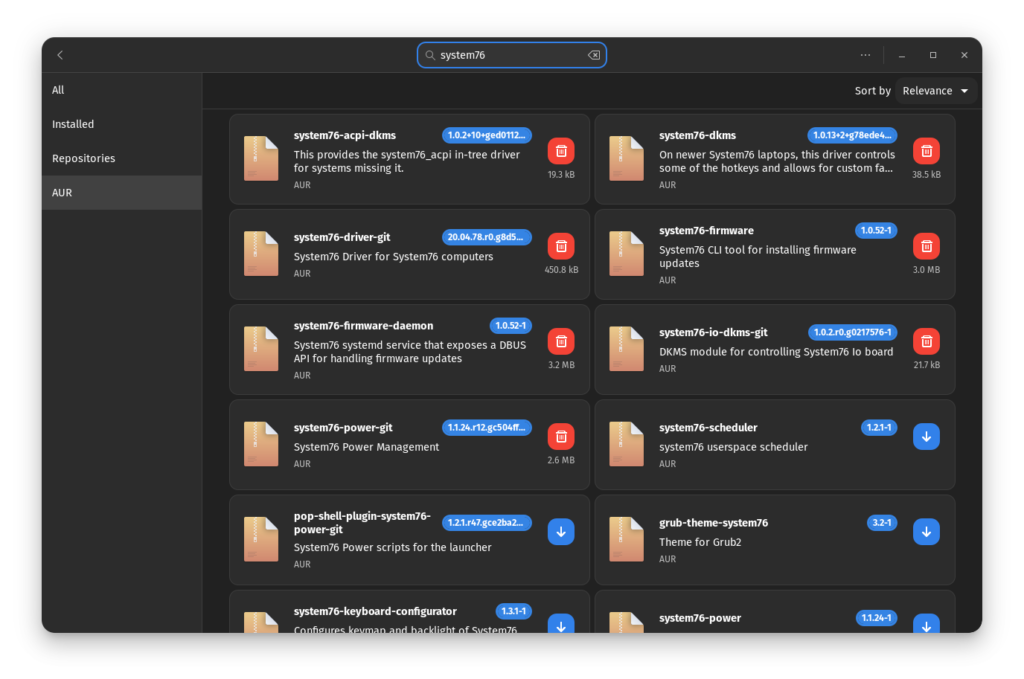
Packages
It is recommended to install everything in the list below.
There are also “-git” versions of many of these packages, which I avoided.
Modules
system76-driver AUR
system76-acpi-dkms AUR (newer)
system76-dkms AUR (older, closed)
system76-io-dkms AUR (not using)
Daemons:
system76-driver AUR
system76-power AUR (needed for System76 switchable graphics and charging thresholds)
system76-firmware-daemon AUR (seems to be needed for things like audio to work right)
Note:
For whatever reason, these packages are prone to breaking.
Several of these are bundled in the Pop!_OS kernel. Building that kernel for Arch would get all the functionality of those packages in a single step. As well: there is some functionality in the Pop!_OS kernel that you can’t get elsewhere; meaning that, without it, our Arch installs are deficient.
Activation
Once you have installed the above, you will need to tell your computer to use them.
Services
Enable the following services: (source)
systemclt enable –now system76
systemctl enable –now com.system76.PowerDaemon.service
It still was not working. To get it all going I edited grub. Omarchy config below this…
sudo nano /etc/default/grub
On the line : GRUB_CMDLINE_LINUX_DEFAULT=”quiet splash …” add so it looks like this, taking care to not remove or edit the boot pointer I represent as three dots.
GRUB_CMDLINE_LINUX_DEFAULT=”quiet splash i915.enable_dpcd_backlight=1 …”
Save and close your editor. Issue this command:
sudo grub-mkconfig -o /boot/grub/grub.cfg
reboot and install firmware stuff if you want it.
Omarchy boot config:
Edit /boot/limine.conf and change
kernel_cmdline: quiet splash cryptdevice=…
to
kernel_cmdline: quiet splash i915.enable_dpcd_backlight=1 cryptdevice=..
Save and reboot. You will need to sudo to save the file. Also, Omarchy updates will likely cause you to need to do this again so save a note.
Modules
To make sure all drivers are being loaded correctly, run system76-driver-cli; this will automatically add necessary rules to /etc/modprobe.d, and execute mkinitcpio.
Note: As of 2021-04-06, this creates a malformed s76-i915-mkinitcpio.conf file, and a redundant (if you have system76-power.conf) system76-driver_i2c-nvidia-gpu.conf file. As such, this step may be skippable, for the time-being. Nevertheless, there is a known solution for the malformation: simply append 1 to options i915 in s76-i915-mkinitcpio.conf. (source)
Firmware
Install the following:
firmware-manager AUR (required if you want to know when there is a BIOS update available)
system76-firmware AUR (required if you want to update your BIOS)
To check your current BIOS version and whether there is a new version available, run firmware-manager as root. Keep in-mind that this is a GTK application, so you need to be running X or Wayland for it to run. (It has no CLI — it does not even respond to –help.)
To update your system to the latest firmware on the next boot, run system76-firmware-cli schedule.
